1. Getting started
Once your subscription is confirmed you get an email from info@raselna.si with a link to set your password. Then log in at raselna.si/login and follow the 4 short setup steps.
- Who are you? Your name or business name, a name for the assistant if you like (e.g. “Sara”), and the language of the alerts you receive.
- Connect WhatsApp (next section).
- Artificial intelligence: on Standard and Pro there's nothing to do, it's included. On Business we set up a dedicated agent with you.
- Turn the assistant on: choose how it handles new messages. We recommend starting with “Suggests, I approve”.
2. Connecting WhatsApp
The assistant replies from your business WhatsApp number. There are two ways:
Business number (recommended)
Through Meta's official connection (WhatsApp Business Platform). Safe, stable and no ban risk. You need a Meta Business account with the number active on the platform; then copy the Phone number ID, Access token and App secret into the setup screen and paste the Webhook link we show you into your Meta app.
Personal number (fastest)
- Open WhatsApp on your phone.
- Settings → Linked devices → Link a device.
- Point the camera at the QR code on the screen.
3. The dashboard
The dashboard shows everything in one place: conversations on one side, the selected conversation in the middle, and on the other side “Needs attention”, service status and your usage.
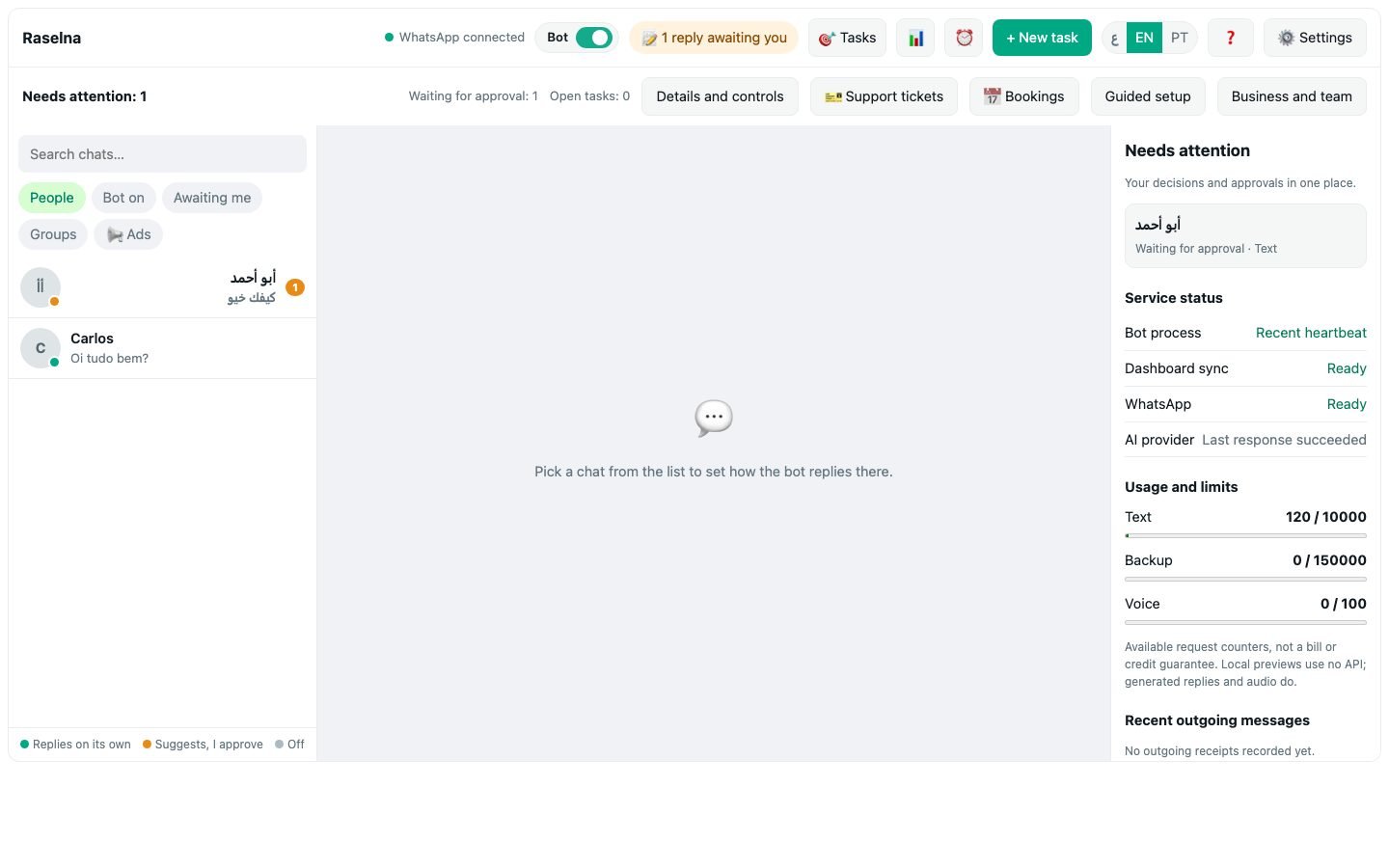
- Bot switch at the top turns the assistant fully on or off.
- “Replies waiting for you”: replies the assistant wrote that wait for your approval.
- 💬 Let's Talk: the red dot means the assistant has questions for you.
- Settings: your general style, languages, business hours, sleep hours, new numbers and alerts.
4. The three reply modes
For each conversation you choose how the assistant behaves:

- Replies on its own: writes the reply and sends it right away.
- Suggests, I approve: writes the reply and sends it to you first. Approve with a tap, edit it or reject it. Best to start with.
- Off: never replies in this conversation.
The mode can also follow the clock: for example, reply on its own after business hours and suggest during them.
5. Per-conversation settings
Click a conversation to see its settings:
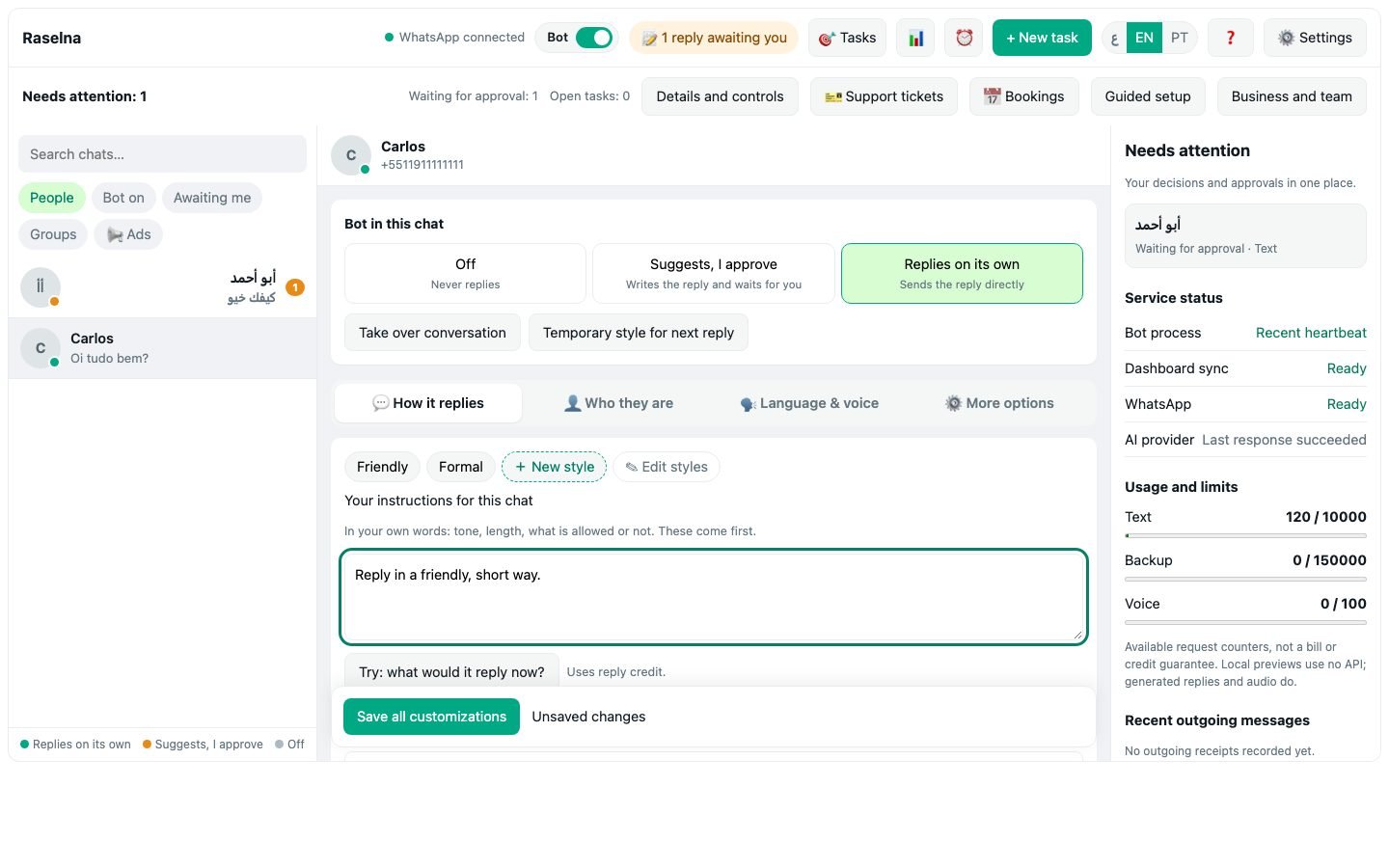
- How it replies: pick a style (friendly, formal…) and write your instructions in your own words: tone, length, what's allowed and what isn't. Your instructions always win.
- Who they are: relationship, what they call you, what you call them, and notes about them.
- Language & voice: automatic (replies in the person's language) or a fixed language, plus voice replies.
- More options: emoji reactions, missed calls and more.
The “Test: what would it reply now?” button shows the reply before anything is sent. Don't forget “Save all customizations”.
6. Let's Talk: teach your assistant
When someone asks something the assistant doesn't know, it doesn't make things up. It logs the question and asks you later in Let's Talk.
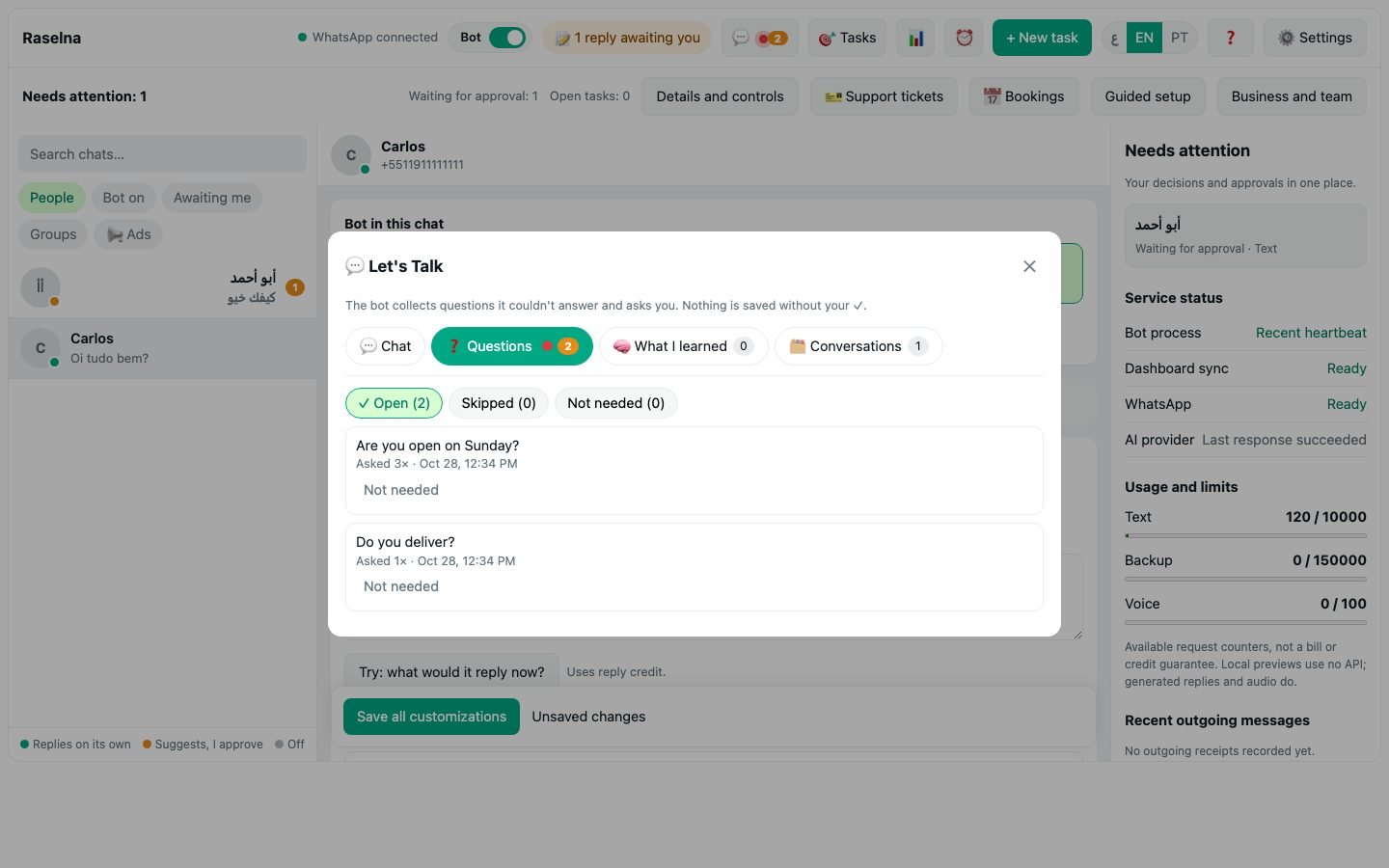
- Open 💬 Let's Talk at the top. The number next to it is how many questions are open.
- Click “Any questions for me?” or just type any information freely, your own way.
- It understands your answer and shows the fact neatly: ✓ approve, ✏️ edit or ✖ ignore.
- Nothing is saved without your approval.
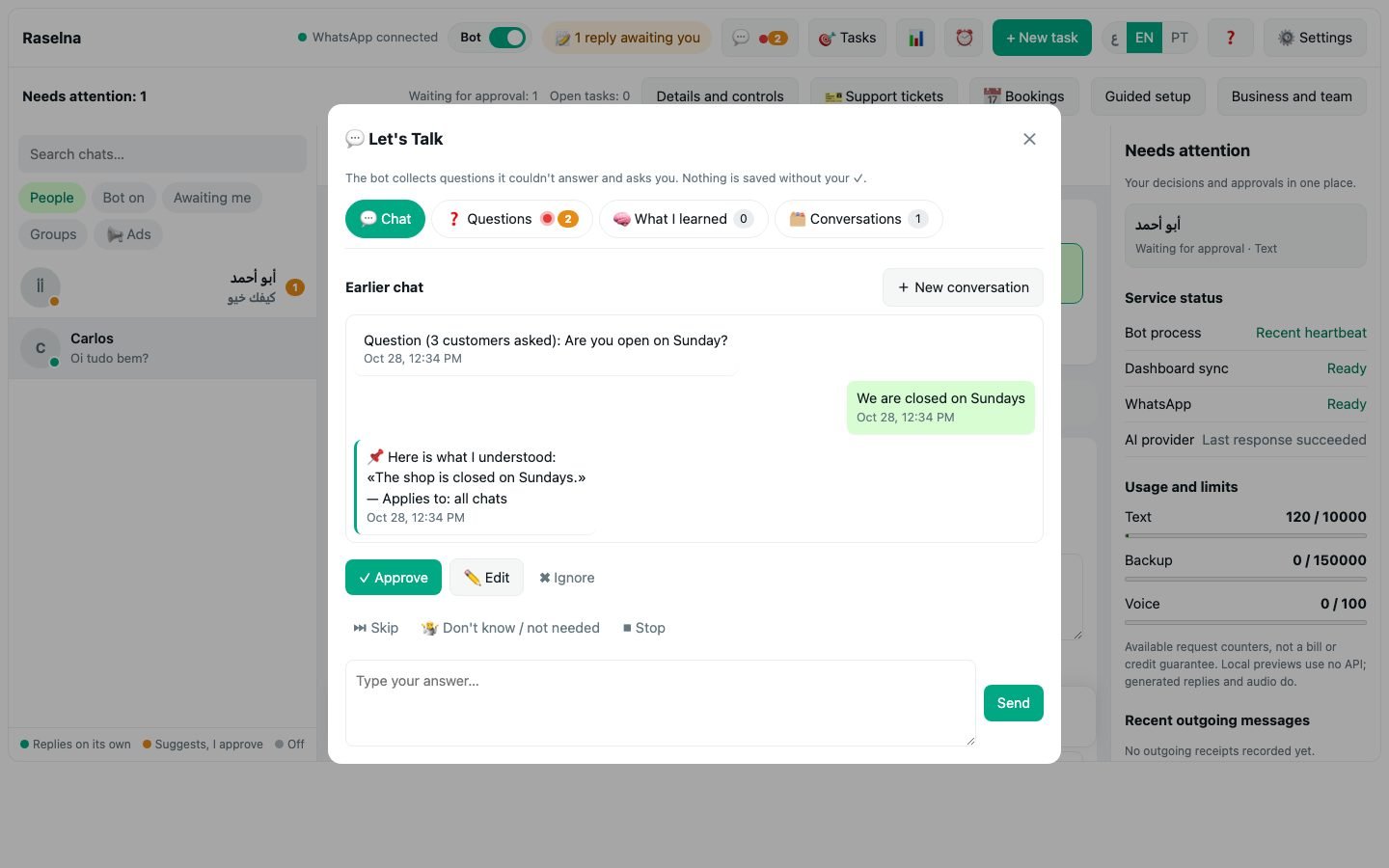
- ❓ Questions: click a question and type a short answer directly.
- 🧠 What I learned: everything the assistant knows. Edit it, delete it, or choose which conversations it applies to.
- 🗂 Conversations: each session is saved separately.
7. Alerts and WhatsApp commands
The assistant sends you alerts on WhatsApp: a reply waiting for approval, a question it can't answer, a summary of a chat with a new number, a missed call, and the weekly report.
- To approve a suggestion: reply to the alert with “ok” to send, “no” to discard, or “edit: …” with your correction.
- Send @Raselna (or your assistant's name) to open a tappable command menu: add a number, tasks, stop replying to someone, turn the assistant on or off…
- Or just ask in your own words: “@Raselna stop replying to John”.
8. Subscription and payment
Prices are shown per month and billed yearly: 1 year, 2 years with 10% off, or 3 years with 15% off.
- In Brazil: PIX (scan the QR or copy the code, then upload the receipt) or card.
- Outside Brazil: card via Stripe (also Apple Pay and Google Pay).
- Once payment is confirmed you receive a receipt by email and your account is activated.
You get a reminder 7 days and 1 day before renewal. If the subscription expires the assistant pauses and all your data is kept; service resumes as soon as you renew.
9. FAQ
Will people know I use an assistant?
The assistant writes in your style. You decide in the instructions what it says about itself.
Does it reply in any language?
Yes, it automatically replies in the language of whoever writes to you, and you can fix a language per conversation.
What if it makes a mistake?
Start with “Suggests, I approve” and correct its suggestions: it learns from your edits. You can turn off any conversation with one tap.
Does it reply in groups?
Only where you enable it, usually when it's mentioned. Each group has its own settings.
Is my data safe?
Private data is encrypted, and the assistant only shares your information according to the permissions you set.
No results. Try another word or ask us in the chat.
Write to us using the chat button at the corner of the page.